Image Text Editor - Photo Text Editor
Upload any screenshot or image, click the detected text, edit instantly, and download in HD. No Photoshop. No complex tools. Just clean, fast results.
Upload Image
Upload a screenshot, poster, receipt, banner, or any image that contains text.
AI Detects Text
Our system scans your image and detects text zones automatically for easy editing.
Edit & Download
Edit your text and export the image in HD quality within seconds.
An image text editor helps you change words inside a picture. You can edit text in image files without design skills. Many people use a screenshot editor for quick fixes. An image text editor online makes this work fast. You upload a photo. You pick the text. You replace it. The result looks clean and real.
People share screenshots every day. Screenshots often include prices, dates, or names. Mistakes happen. Updates become necessary. An image text editor online solves this problem. You do not need heavy software. You do not need training. You work in your browser. You save time.
Students fix notes. Creators update posts. Businesses correct details. Marketers adjust ads. These tools help with school work, office tasks, and online content. They also help keep images clear and accurate. This guide explains the basics. You will learn what an image text editor does.
You will see why people use screenshot editors. You will learn the best features. You will follow a simple step guide. You will also see common problems and fixes. Let’s start.
What is an Image Text Editor?
An image text editor is a tool that edits words inside images. It works on photos and screenshots. It replaces text in a natural way. The tool finds the letters. It removes old text. It adds new text in place.
Many tools use OCR. OCR reads text from images. The editor detects letters and words. You then select the text area. You type new content. The editor blends it with the background.
An image text editor is useful for small and large edits. It helps when you cannot retake a screenshot. It saves effort and reduces repeat work. You can fix one word or change a full line. The process stays simple. The result stays clear. This makes the tool helpful for daily tasks and quick updates.
An image text editor online runs in a browser. You do not install software. You upload a file. You edit it. You download the result. These tools support common formats. PNG and JPG work well. Some tools also export PDF files.
A screenshot editor is related. It adds arrows and highlights. It crops images. It blurs parts. An image text editor focuses on text replacement. It aims for realism. The goal is a clean edit that looks original.
Why People Use Screenshot Editor to Edit Text in Image
People use screenshot editors to fix images fast. Screenshots capture real moments. They also capture mistakes. Edits keep content accurate and useful.
Fix Typos in Screenshots
Typos appear often. Screenshots lock those errors in place. An image text editor removes the mistake. You add the correct word. The image looks clean again.
Update Price, Date, Name, Details
Prices change. Dates move. Names update. Old screenshots confuse people. Editors let you update details. You avoid retakes. You save time.
Create Professional Social Media Posts
Creators post screenshots daily. Clean text matters. An editor keeps posts sharp. The result looks planned and professional.
Change Text for Marketing & Ads
Ads need speed. Messages change often. An image text editor updates text fast. You test offers. You keep visuals consistent.
Best Features of a Good Image Text Editor Online
A good tool saves time and keeps quality high. It helps you finish edits faster. It also keeps the image clear and natural. You should choose a tool with the right features. These features make editing simple. They also reduce mistakes. The right tool improves results every time.
Detect Text Automatically (OCR Support)
OCR finds text inside images. It scans the image and reads the letters. This feature removes the need to trace text by hand. You click the text area with ease. The tool understands words and spacing. This saves time. It also improves accuracy. OCR works well for screenshots and photos.
Remove Old Text & Clean Background
Clean removal matters for realistic edits. The tool should erase text fully. It should not leave shadows or marks. The background should match the rest of the image. Colors should blend well. Patterns should stay smooth. A clean background makes new text look original.
Add New Text with Same Font Style
Font matching keeps edits real. The tool should copy font size. It should copy font weight and style. This keeps text consistent. The new text should blend into the image. It should not stand out. Good font matching makes edits hard to notice.
Text Position & Alignment Control
Control helps accuracy. You move text by small steps. You place it in the exact spot. Alignment keeps lines straight. Spacing should look natural. Good control prevents uneven text. This keeps the image clean and balanced.
Multi-language Text Editing
Many images include different languages. Some include accents or special letters. Good tools support many scripts. They handle global languages well. This helps students and businesses. It also helps international creators. Language support increases flexibility.
Download in High Quality (PNG/JPG/PDF)
Quality matters after editing. The editor should export sharp images. Text should stay clear. Colors should stay strong. There should be no blur. There should be no heavy compression. Support for PNG, JPG, and PDF adds value.
How to Edit Text in Image Online (Step-by-Step Guide)
Follow these steps to edit text with ease. Each step is simple. You do not need design skills. You only need a browser and an image. The process stays quick and clear from start to finish.
Step 1 - Visit Our Website and Go to This Section
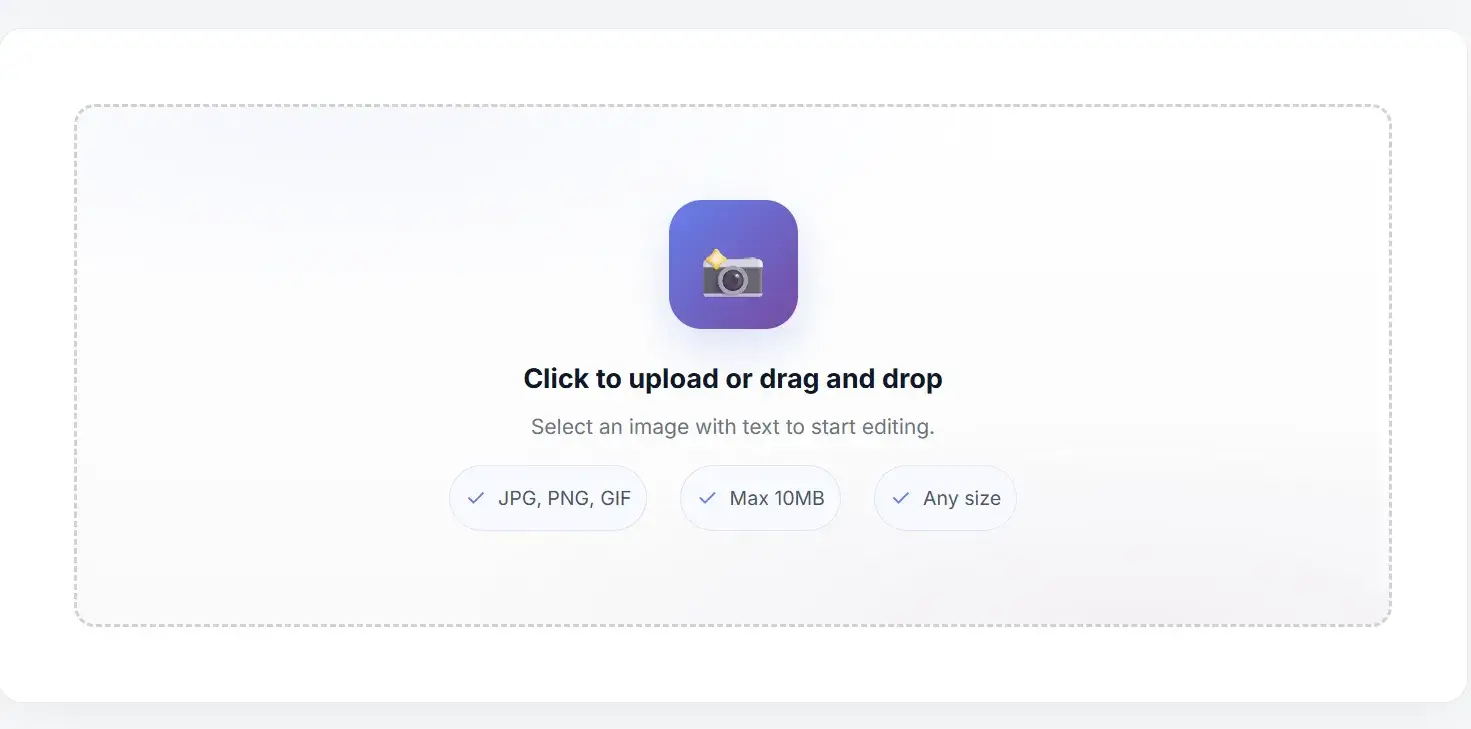
After visiting our website, you will see a section where you can upload your images or screenshots.
Step 2 - Upload Your Image or Screenshot
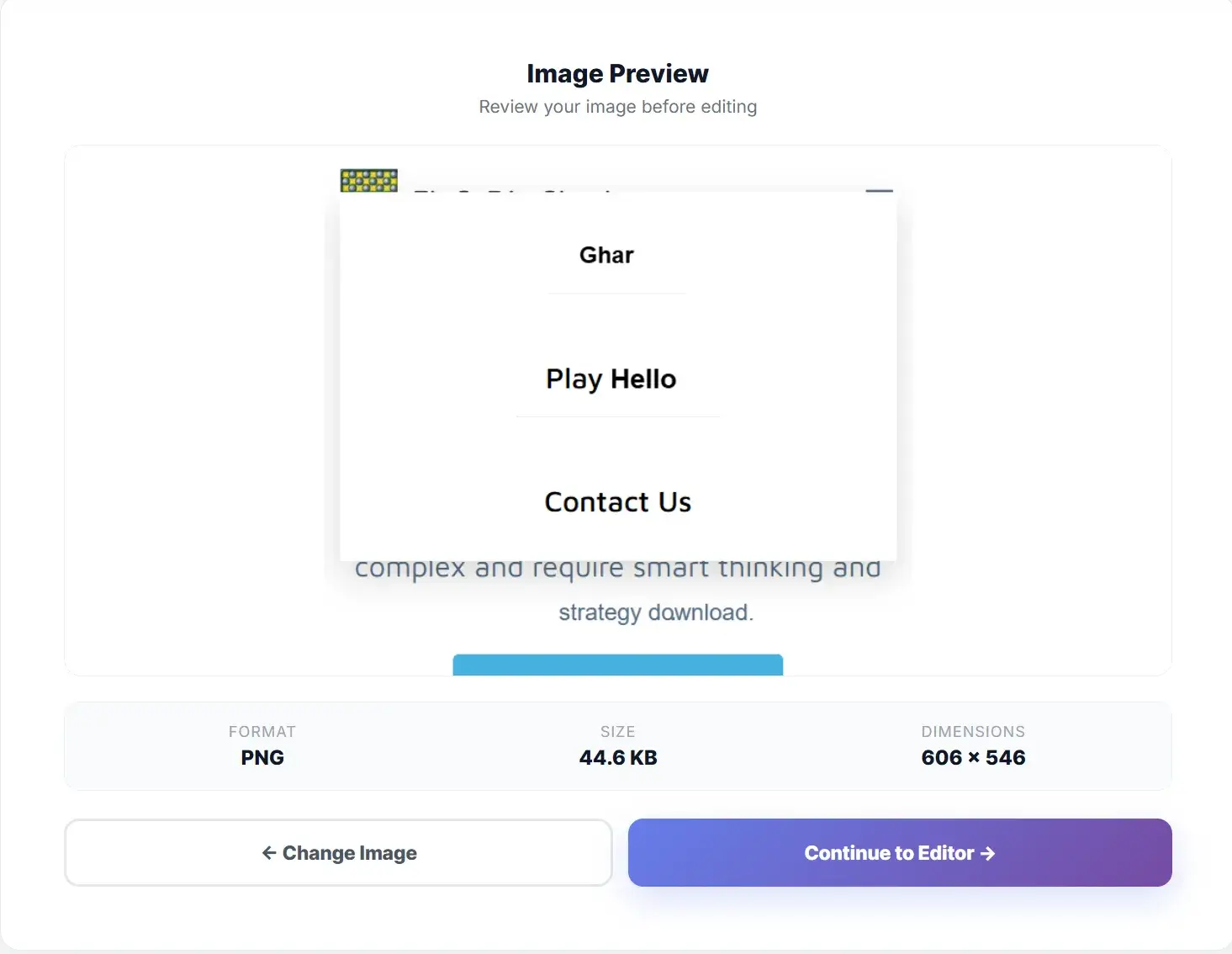
Open the editor site in your browser. Click the upload button. Select your image or screenshot. The file will load on the screen. Wait a few seconds for processing. Make sure the image looks clear before editing.
Step 3 - Select the Text Area
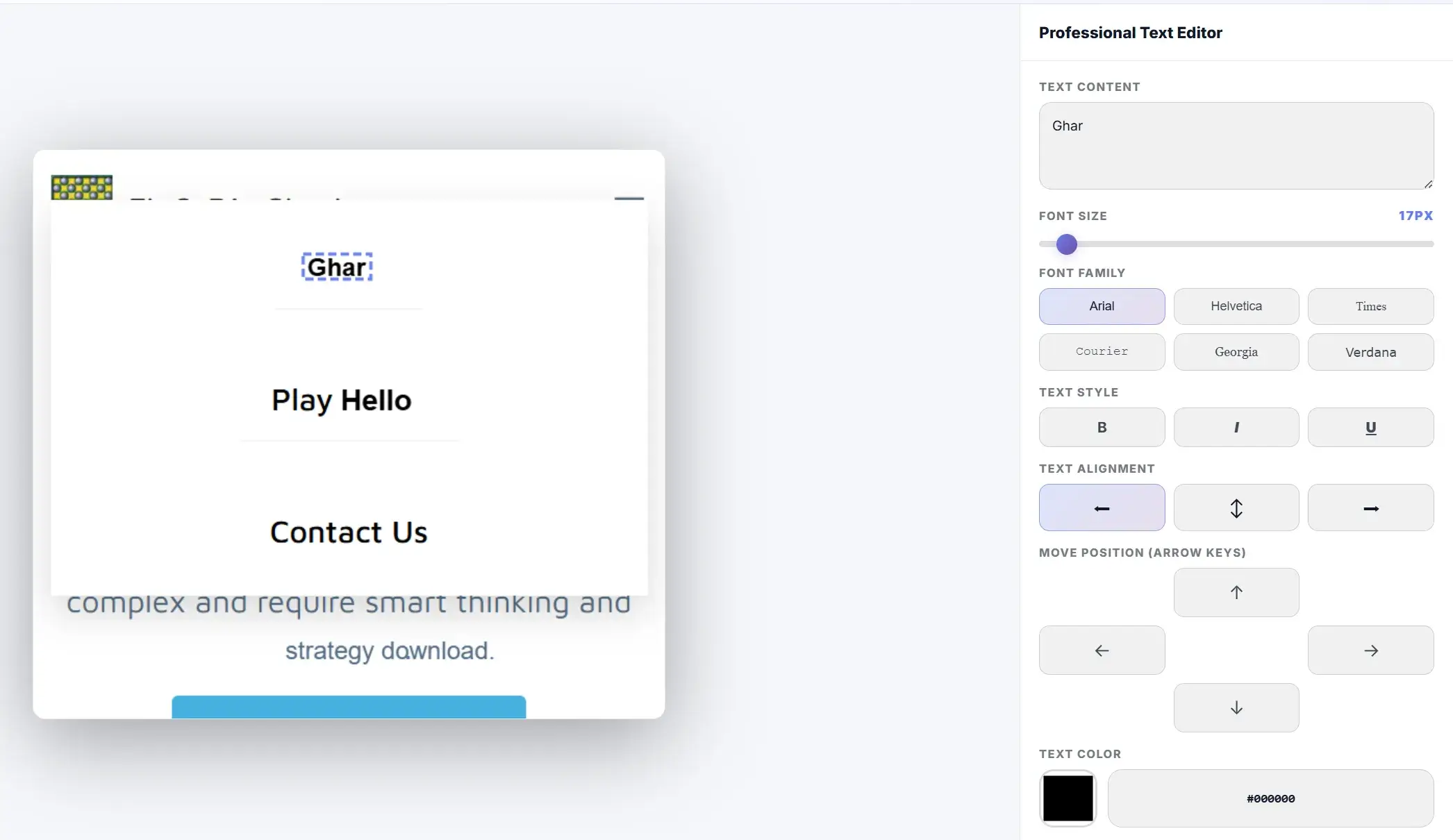
Choose the select or text tool. Click on the text you want to change. Drag the box to cover the full area. Adjust the edges if needed. Confirm the selection. This step helps the tool detect the text correctly.
Step 4 - Remove Existing Text Cleanly
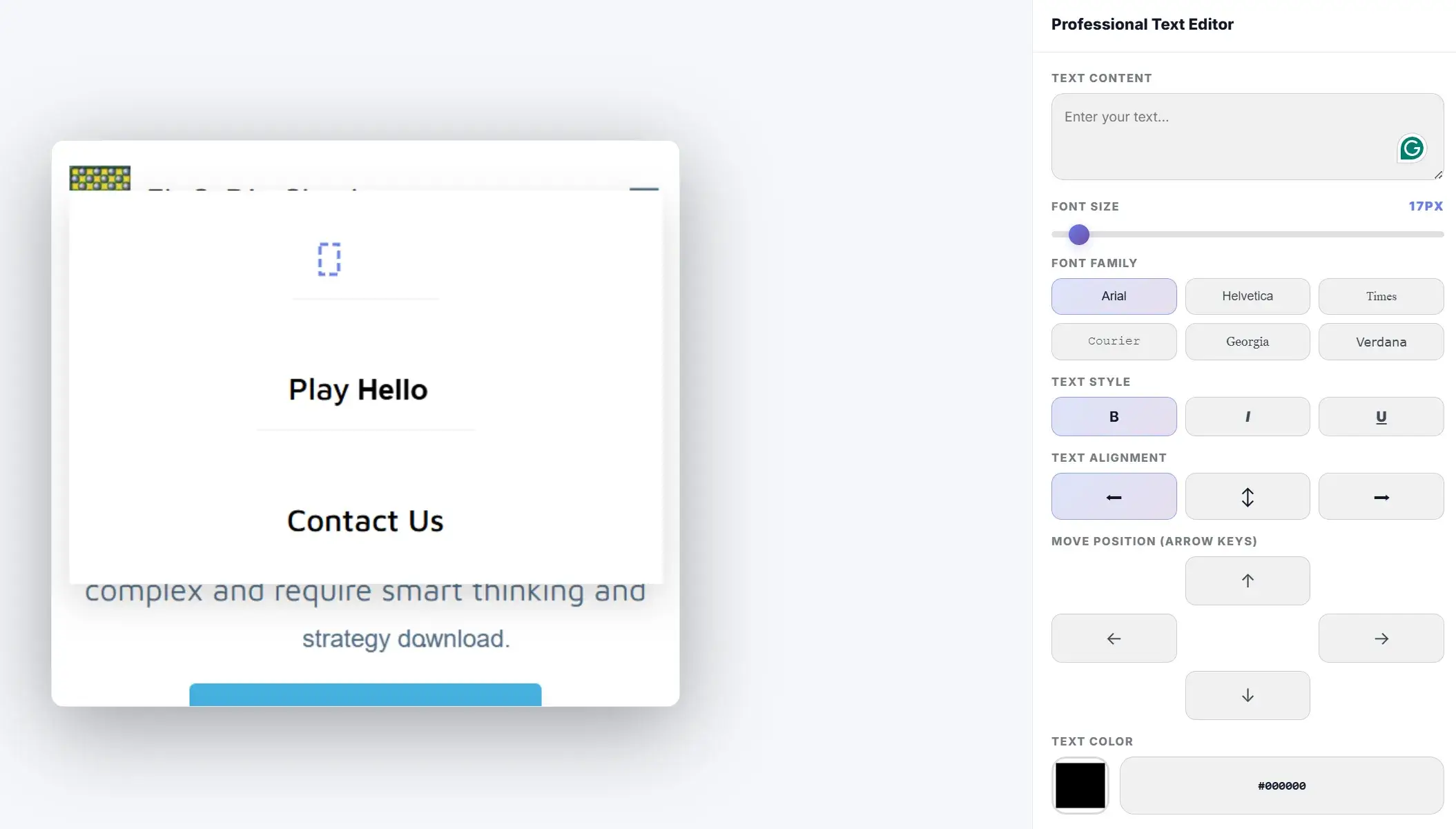
Choose the remove or erase option. Let the tool delete the old text. Check the background area. It should look smooth and natural. Repeat the process if any marks remain.
Step 5 - Type Your New Text
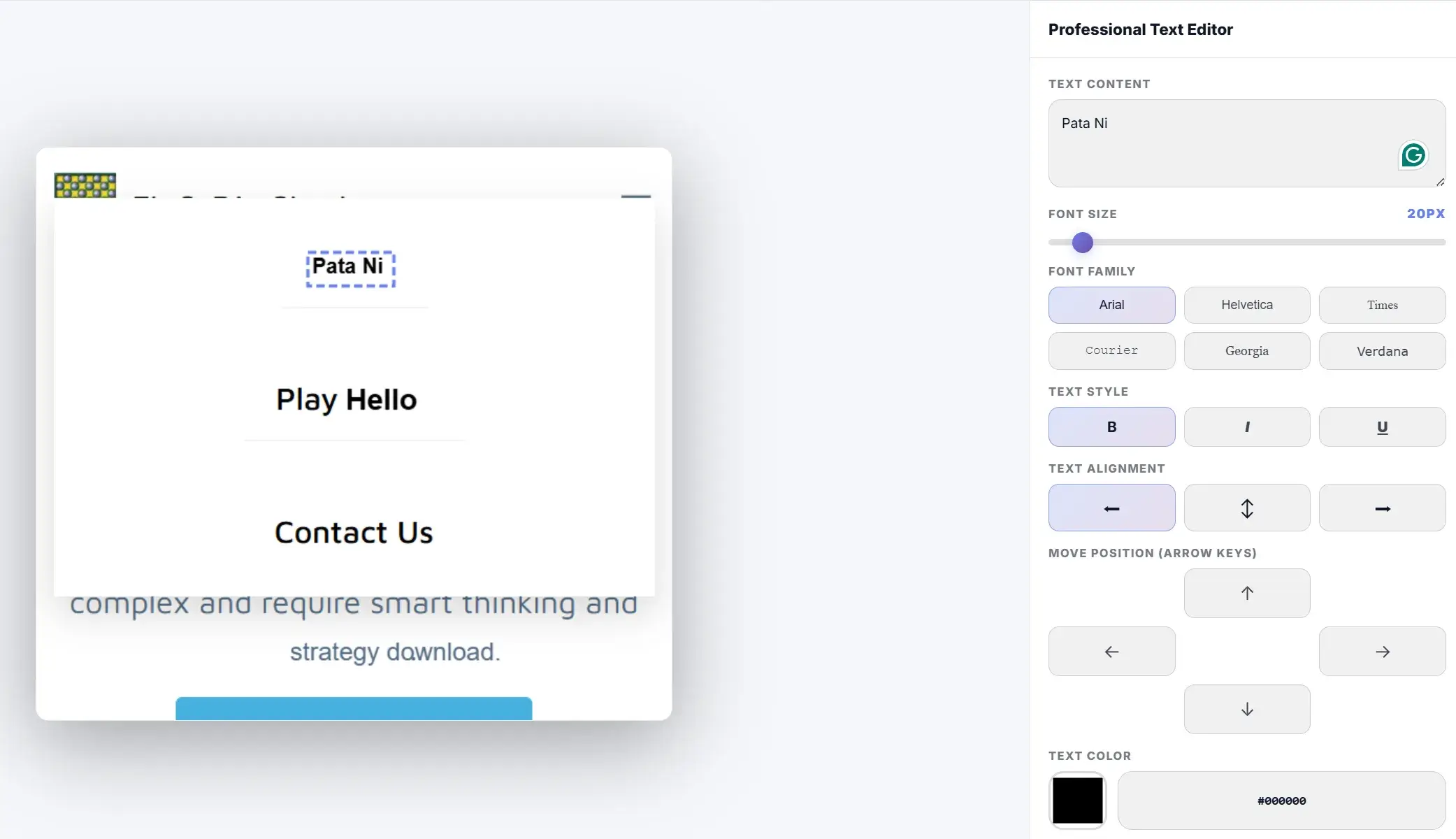
Click the text input tool. Type your new words in the empty space. Keep the text simple and readable. Check spelling before moving on. Clear text improves the final result.
Step 6 - Match Font Size, Color & Style
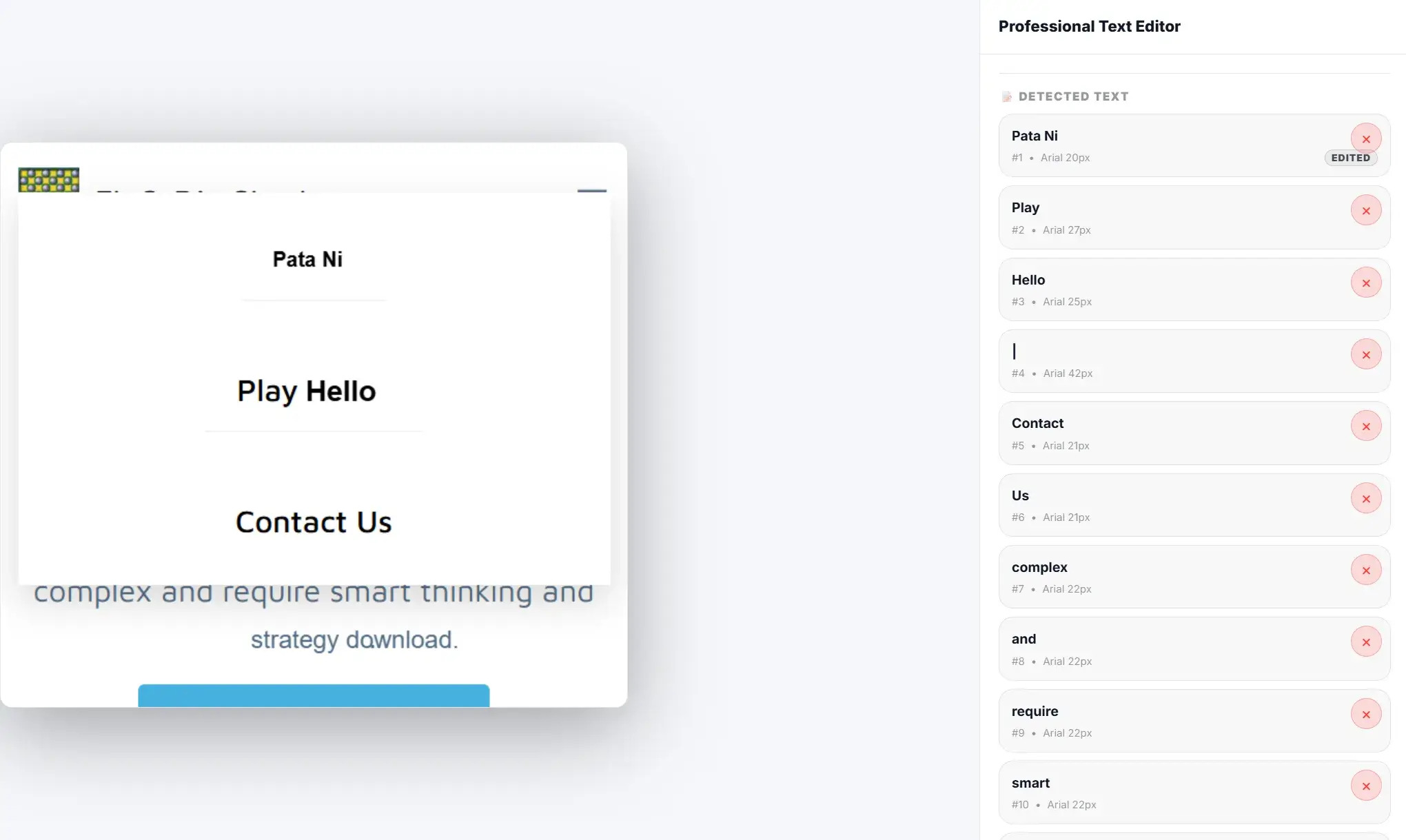
Adjust the font size to match the original text. Change the color to blend in. Use a color picker when possible. Match font weight and spacing. This keeps the edit realistic.
Step 7 - Export & Download
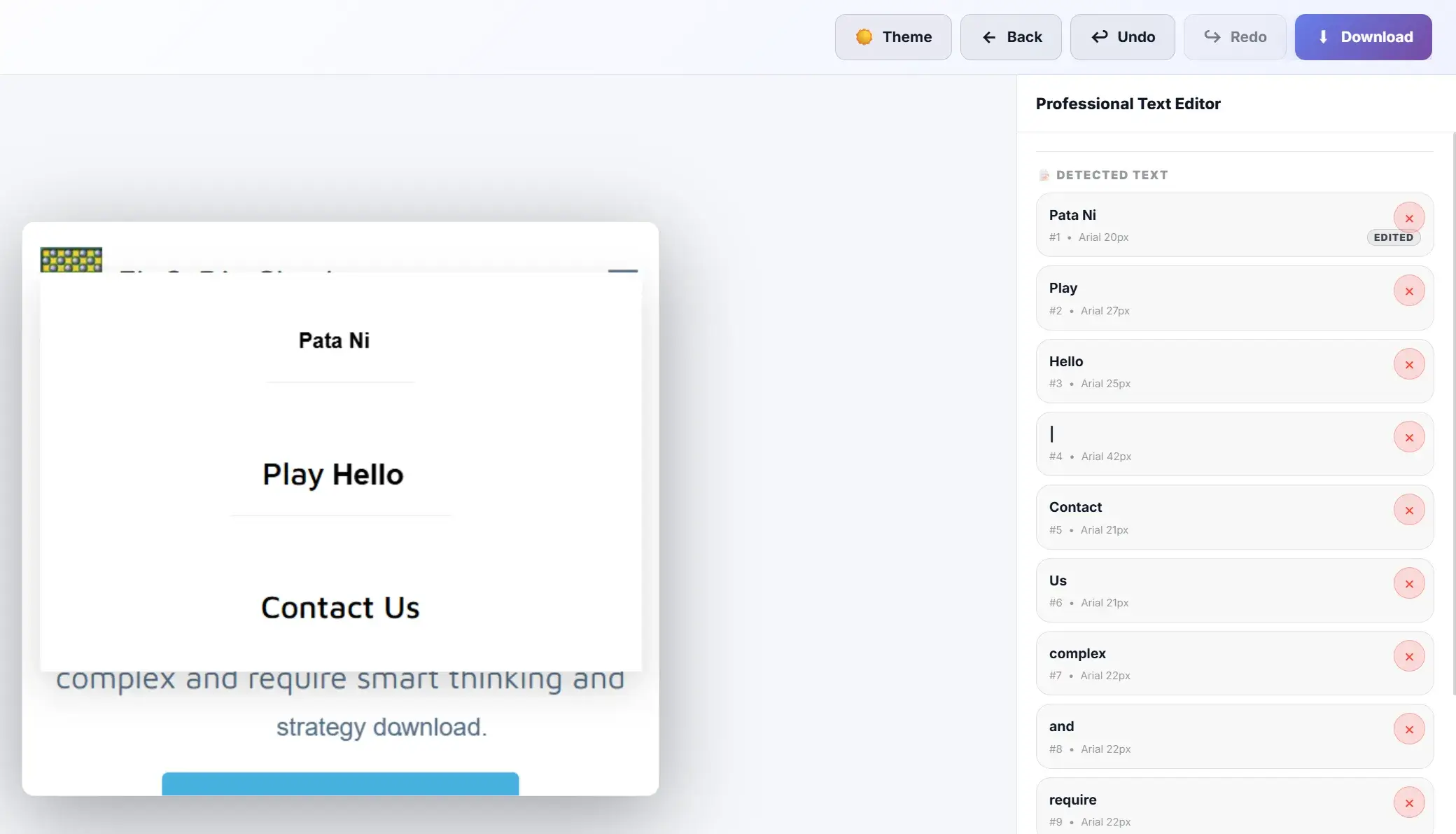
Preview the full image carefully. Look for small issues. Make final adjustments if needed. Click the download button. Save the file to your device. The image is now ready to use.
Screenshot Editor vs Image Text Editor – What’s the Difference?
A screenshot editor focuses on visual changes. It helps explain things clearly. It crops images to remove extra space. It adds arrows to point at details. It highlights important areas. It blurs private or sensitive parts. It can also place text on top of the image as labels or notes.
An image text editor works in a different way. It replaces text inside the image itself. It removes old words completely. It fills the background smoothly. It adds new text in the same place. The goal is realism. The edit should look natural. The image should look unchanged at first glance.
| Feature | Image Text Editor | Screenshot Editor |
|---|---|---|
| Easy to Use | ✅ Yes | ❌ Hard |
| Online Tool | ✅ Yes | ❌ Quite Possible |
| 1-Click Editing | ✅ Yes | ❌ No |
Use a screenshot editor for tutorials and notes. Use it when you need markers or highlights. Use an image text editor for corrections and updates. Choose it when text must look original and clean.
Common Problems While Editing Text in Image (And Fixes)
Edits can go wrong during image text changes. Small mistakes can make the edit obvious. These fixes help improve the final look. They also help keep the image clean and natural.
New Text Looks Like a Sticker (Overlay Problem)
This problem happens when text sits on top of the image. It does not blend with the background. The text looks pasted on. Use text replacement tools instead. Match the font size and color. This helps the text blend in.
Background Not Matching
Sometimes the background looks uneven. Colors may not match. Patterns may break. Use clean remove tools to fix this. Zoom in to check details. Add light blur if needed. This smooths the area.
Font Doesn’t Look Same
Font differences stand out fast. Try fonts that look similar. Adjust the weight to match thickness. Change spacing between letters. Small tweaks make a big difference. The text will look more natural.
Text Overlaps Old Text
Overlapping text makes images messy. Old text may still remain. Erase the area fully before typing. Check the image at high zoom. Make sure the space is clean before adding new text.
Use Cases: Where Image Text Editor Online is Helpful
These tools help many users in daily tasks. They save time and reduce repeat work. They also help keep images clear and accurate. Many people rely on image text editors for quick updates.
Students & Notes Editing
Students often save notes as screenshots. Mistakes can appear in those images. Image text editors help fix spelling and wording. Students correct errors fast. They keep notes clear and easy to study.
Business Invoice / Quote Screenshot Updates
Businesses share invoices and quotes as images. Prices and dates may change. An image text editor updates this information quickly. Teams avoid creating new files. This saves effort and time.
Content Creators (YouTube Thumbnails)
Creators use text on images every day. Titles may need changes. Image text editors update text fast. Creators keep colors and fonts consistent. This helps maintain strong branding.
Ecommerce & Product Edits
Online stores often change prices and labels. Product images need updates. Image text editors help replace text cleanly. Stores publish updates without delay.
Meme & Fun Text Edits
Memes depend on timing. Text must change fast. Image text editors help create new jokes. They keep humor fresh and relevant.
Tips to Make Image Text Look Realistic & Natural
These tips improve results
- Use Same Font Style: Match the original font. This keeps the edit hidden.
- Keep Same Spacing & Alignment: Check letter spacing. Align text carefully.
- Match Text Color Using Picker: Pick the exact color. Avoid guessing.
- Add Slight Blur / Shadow Like Original: Some text has soft edges. Add light blur or shadow.
- Don’t Stretch Text (Maintain Ratio): Resize evenly. Keep proportions correct.